Posts
Posts


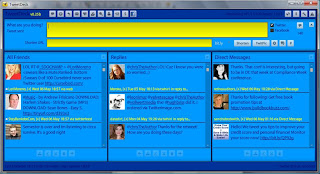
You've got Tweetdeck going and everything's pretty good, except you don't know how to send a message or do any of the other supposedly cool stuff I promised. Today, we'll get into some of that.
To display or hide the area for entering Tweets, click the button all the way to the left with the dialog balloon displayed (the one directly next to the reference to Tweetdeck and the version number).
If you want to Tweet, enter your message in the What are you doing? field. To the right you'll see a counter that keeps track of the number of characters you have left.
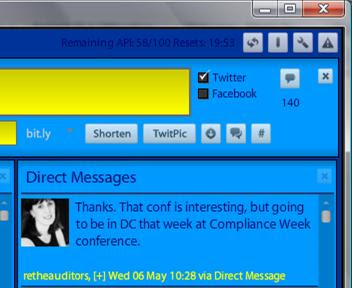
Shortening a URL
URLs aren't typically short. The base URL for this blog (http://pub-news.blogspot.com/) is 28 characters long, and that's before I include anything that directs you to a specific post. Fortunately, there's a field where you can enter a URL and engage a service to reduce its length. Just enter the URL in the Shorten URL field, then click the Shorten button. For the base URL displayed above, this function reduces the length from 28 character to 19 characters. For longer URLs, the reduction is much more dramatic.
Interacting with People
If you want to send a message to all your followers, just type it in the What are you doing? field and either press Enter or click the conversation balloon butto to the right of the Twitter and Facebook checkboxes.
If you want to reply to an individual person's Tweet, hover your mouse pointer over their picture and click the Reply to button (upper left corner). @theirusername appears in the What are you doing? field. Adding the at sign and the person's name to the Tweet assures it will show up in their Replies area.
Retweeting allows you to forward someone else's tweet to all your followers. To retweet someone else's tweet, hover your mouse pointer over the person's picture and click the button with the right-facing arrow (the lower left button). Retweeting replicates the person's tweet with an RT in front of it. It's an honor to be retweeted. It's also okay to edit someone else's Tweet if it won't fit.
To send a direct message to someone, hover the mouse pointer over their picture and click the envelope. Sending a direct message starts the tweet with D thatpersonsname, which uses up some of your 140 characters. If you send someone a direct message, they're the only one who sees it.
The paradox of insular language
2 years ago